
Share your medication log with your doctor
A log on your phone only helps at an appointment if the person on the other side of the desk can read it. The most reliable way to share one is to export it as a file you can send, print or hand over. This guide covers exporting from Peptimes, choosing a format, opening the file in a spreadsheet, checking it before you send it, and keeping track of your copies.
The checks apply to a log from any app.
What a Peptimes export contains
Peptimes exports your records as CSV or JSON, for yourself or for an appointment. An export covers the data stored on your iPhone for the account you're signed in to:
- your logged doses (the export screen calls them "Injection logs")
- daily check-ins
- body metrics, weight history and measurements
- your compounds and schedules
- doses awaiting your answer, from checking past doses
- doses you marked as not taken
- goals and preferences
Your name and email aren't in the file.
Weights and body measurements appear in the units you've chosen (for example pounds, or feet and inches) next to the metric values Peptimes stores, so you can read either one.
An export is a snapshot from the moment you make it. Entries you add afterward aren't in a file you already created, so export again before an appointment if you've logged since.
How to export
- Tap your photo or initials at the top of Home to open Profile, then tap Export My Data. (You can also tap Export data in Insights.)
- Choose Export as CSV or Export as JSON.
- In the iOS share sheet, choose where the file goes: save it to Files, send it by AirDrop, or attach it to an email.
Peptimes names the files peptimes-export.csv and peptimes-export.json.
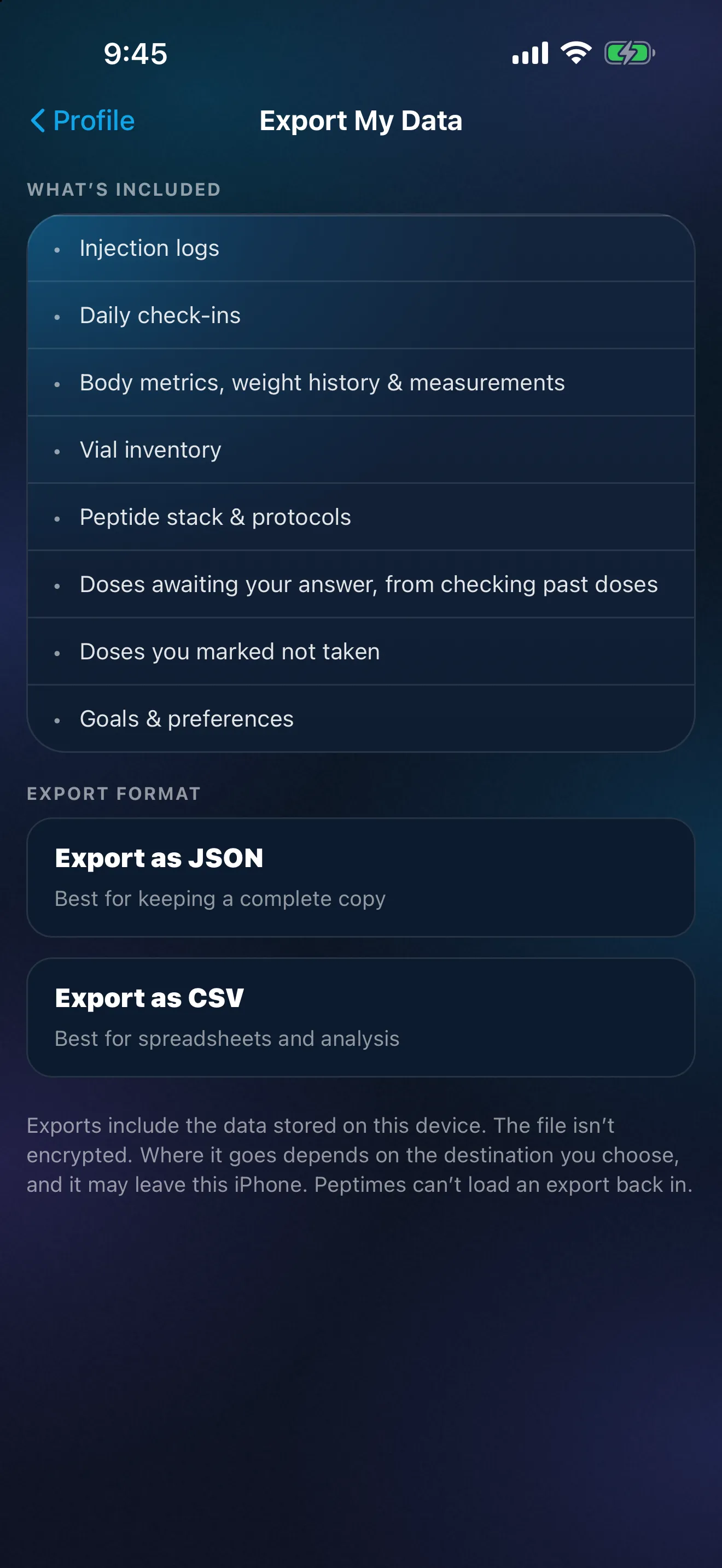
Choose CSV or JSON
On the export screen, CSV is labeled "Best for spreadsheets and analysis" and JSON is labeled "Best for keeping a complete copy".
- CSV is one file with a section for each kind of data. It opens in spreadsheet apps. Choose it when someone else will read the file, or when you want to look through your records yourself.
- JSON is structured text. You can open it in a text editor, but it is much harder to scan than a spreadsheet. Choose it for your own complete copy.
If your clinic names a format, ask what they can open before you send anything. Each export is its own file, so you can make both. Peptimes doesn't make PDF reports.
Open a CSV in a spreadsheet
- Save the CSV to Files, or send it to your computer by AirDrop or email.
- Open it with a spreadsheet app, such as Numbers or Excel.
- Expect a series of small tables rather than one long list. Because the CSV holds every kind of data in one file, each section starts with a line that names it and begins with
#(for exampleinjectionsfor your dose logs ordailyCheckInsfor your check-ins). Most sections have a header row, then one row per record, with their own columns. Body metrics, goals and unit preferences are the exception: each is a single cell of JSON text. - Widen the columns and turn on text wrapping so your notes are readable.
- Check that dates and times look right. Spreadsheets sometimes reformat them.
To share only your doses, copy that section into a new sheet and send the new sheet. Leave the exported file unchanged. To print, open the CSV in a spreadsheet and print the section you need.
One caution about where you open it: a web-based spreadsheet usually uploads a copy of the file to that service. If you want the file to stay on your own devices, open it with an app that runs on the device.
What to check before you share
- The date range. Scroll to your first and last entries. A log starts on the day you started logging, so make sure it covers the period you mean to show.
- Gaps. An export shows what you recorded, not everything that happened. A day with no entry means no record, which isn't the same as no dose. Fill in anything you took but didn't log, then export again.
- Answered and open doses. If you used Peptimes to check past doses, the file lists doses still awaiting your answer and doses you marked as not taken in their own sections. Answer the open ones first, so the record says what you mean it to say.
- Amounts and units. Read each amount next to its unit. If something is wrong, correct it in Peptimes and export again, so the file and the app say the same thing. Editing the exported file leaves you with a version that doesn't match your records.
- Everything else in the file. The export includes check-ins with their notes, weights, measurements and goals, not only doses. Read your notes. If you want to share only part of it, make a copy of the file and delete the sections you don't want to send.
- Whose file it is. The file doesn't carry your name or email, so say who it's from in your message.
- How the clinic wants it. Ask how they prefer to receive a file: a patient portal, a secure message, a printout, or on your phone at the visit. A file sent by ordinary email is copied into at least two mailboxes.
A shared file is a copy outside the app
Your health records are stored on your iPhone. When you export, you create a separate file, and from that moment it lives wherever you put it: in Files, in an email, on a computer you AirDropped it to. Once it's outside the app, Peptimes can't update it or take it back. CSV and JSON are readable text, so anyone who has the file can read it.
Keep exports in one folder you recognize, with the date in the file name, and delete the copies you no longer need once an appointment is over.
Exporting is also how you keep your own copy of your records. Peptimes doesn't keep a copy of your records on its servers. Because your records live on your iPhone, deleting the app deletes them from it (a reinstall starts empty, and signing in again brings back only your account). Your records may not come across to a new iPhone, so export a copy first. Make one now and then, and treat it with the same care as any other health document.
If you use another app or a paper log
The same checks apply. Look at the date range, look for gaps, read the units, remove what you don't want to send, ask how the clinic wants it, and delete copies you no longer need.
Peptimes and your records
Peptimes is a private iPhone tracker, coming soon to the App Store. You log doses, check-ins, weights and measurements as they happen, and a few taps in Export My Data turn them into a CSV or JSON file when an appointment is coming. You choose where the file goes. How Peptimes handles your data explains where your records are stored.
Sources
- Peptimes, Help Center, "Export your data", checked 25 Oct 2026: the export steps, the formats, what's included and not included.
Coming soon to the App Store
See planned pricing