
Dose history: every dose you've logged, in one list
Peptimes keeps a dose history for the compounds you track: one page that lists every dose you've recorded, newest first, under month headings. You can search it by name, narrow it to one compound with a chip, and open any dose to review or correct it.
Everything in it is something you recorded. You enter your own amounts and schedules, and the history shows them back to you.
What's on the Dose History page
- Every dose, newest first, grouped by month. A blend you created shows as one entry; open it to see each compound's amount. When you filter by a compound, the blend shows under each of its compounds too.
- Search. Type a name at the top to narrow the list.
- A chip for each compound. Tap a chip to see only that compound's doses. Tap All to see everything again.
- Fix one you got wrong. Tap a dose to open its summary, where you can edit or delete it.
- Doses you recorded, not doses you skipped. A dose you marked as not taken doesn't appear in Dose History. The Calendar shows it as "Not taken".
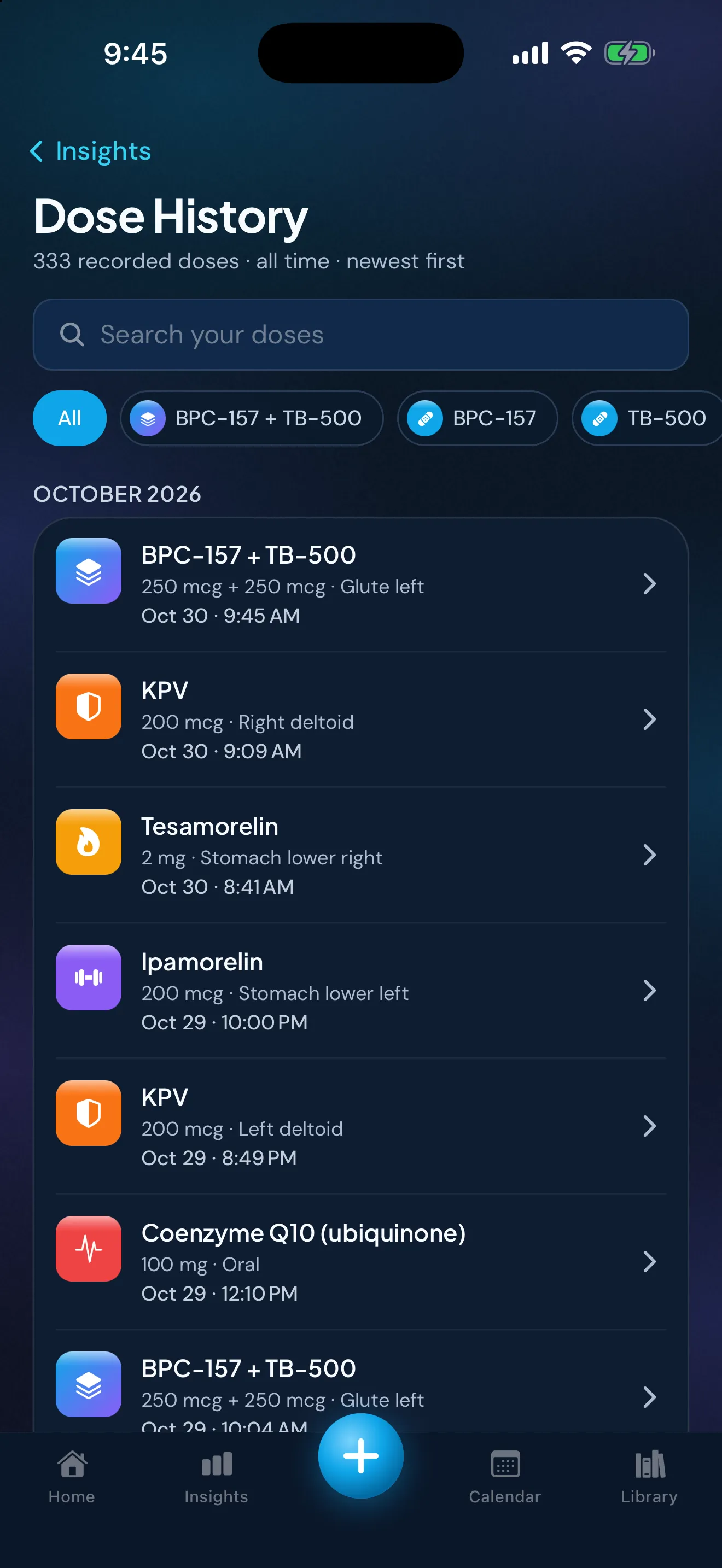
Sample data. The amounts are what a demo person entered, not advice.
The summary line
When a compound's chip is selected, a summary line appears under the title, in this form:
N doses of [compound] · last Oct 22 · every N hours on average
It tells you how many doses of that compound you've recorded, the date of the last one and the average time between them. The average is given in hours or days. If the first or last of those doses has no time, there's no average.
The line is arithmetic on your own entries. It isn't a target, and it doesn't check your history against a schedule. An average can hide uneven gaps, so read it next to the list itself.
Where to open it
Dose History opens from the Dose History card on Home and in Insights. Once you've logged a compound, its Library entry also has a "Your doses" card that opens Dose History on that compound.
Filling gaps and recording what happened
Dose History lists what you've recorded. To fill in a dose you forgot to log, or to record that you didn't take one, use Home's earlier days or the Calendar. On Home, Previous days lists the past week's doses you haven't logged. The guide to reviewing your dose history and recording what happened walks through each step, and it works for any log, not only Peptimes.
Started before you found Peptimes? Set your start date up to 6 months back and confirm the doses you've already taken, all at once if you like. Those past doses are saved without an injection site.
What Dose History doesn't do
- It looks back. Home and the Calendar show what's due. Dose History shows what you've recorded.
- It doesn't judge. It lists and counts your entries. It doesn't say whether your record is good, complete or on schedule.
- It's on iPhone only. Peptimes has no Android app and no web app.
Taking your history with you
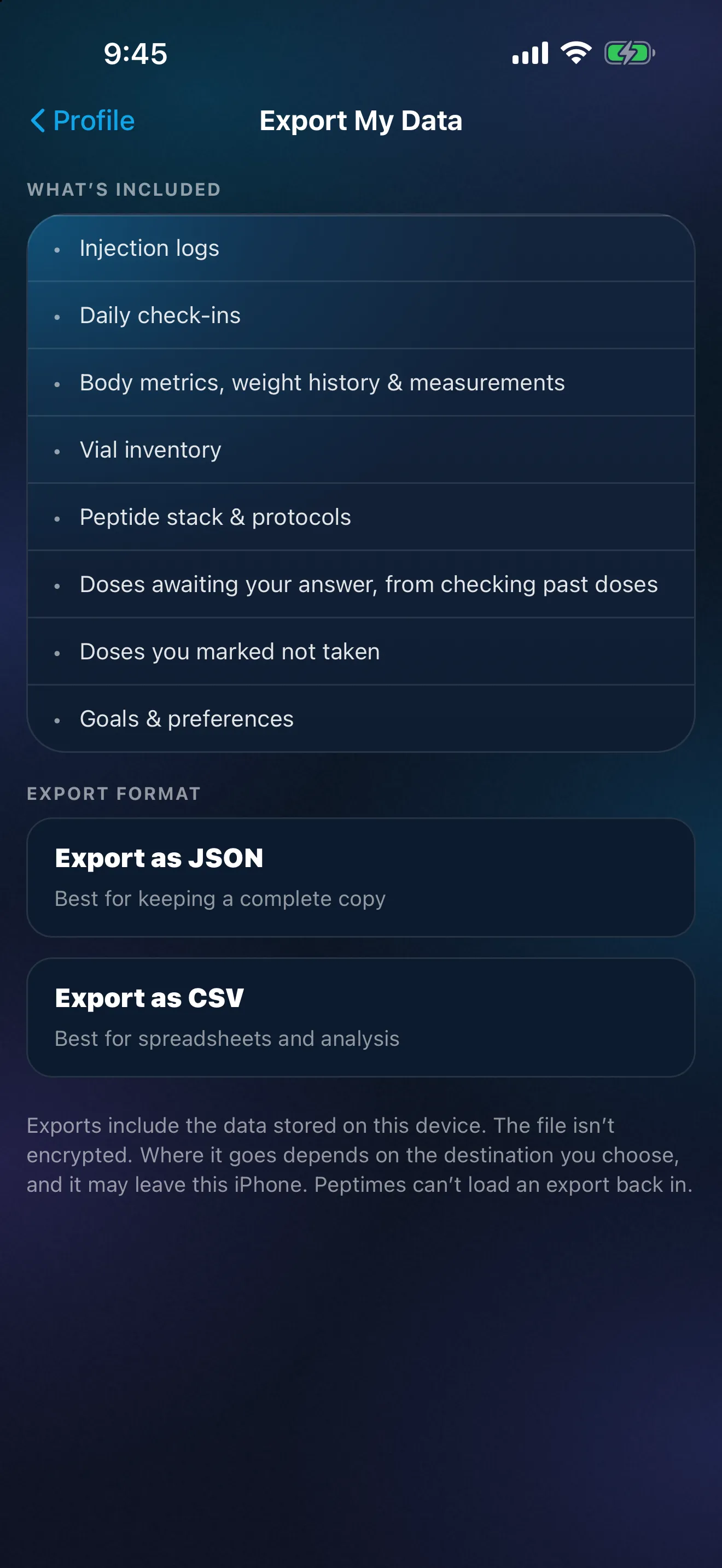
Your health records are stored on your iPhone, and your account (email and basic profile) is held by our sign-in provider. Export your records as CSV or JSON, for yourself or an appointment. Your records may not come across to a new iPhone, so export a copy first. Exporting your records for an appointment covers what to send and how.
Price and availability
Coming soon to the App Store. Planned launch pricing: $9.99/month or $69.99/year, with a 14-day free trial. After the 14-day trial, Peptimes needs a subscription. See planned pricing.
FAQ
Does the summary line tell me if I'm on schedule?
No. It counts the doses you recorded for one compound, shows when the last one was and, when the times are known, the average time between them. Questions about your schedule belong with your prescriber or a licensed clinician.
More: Library entries and status labels, injection-site history, the peptide tracker app, and how Peptimes handles your data.
Sources
- Peptimes, Help Center, "Past days, future days and Dose History", checked 25 Oct 2026: month grouping, search, chips and the summary line.
Coming soon to the App Store
See planned pricing