
How to store your medication records safely on your phone and computer
Medication records end up in more places than people expect: a tracking app, an exported file, an email to a clinic, a photo of a label, a spreadsheet. Each is a copy you have to look after. This guide covers what you can do on an iPhone and a computer: lock your phone, keep it updated, be careful where exported files go, delete copies you no longer need, and share only with people you choose.
None of this makes a record risk-free, and the steps apply to records from any app. Menu names come from Apple's iPhone User Guide for iOS 27 and can differ on other versions. The last section covers Peptimes.
Lock your phone
Everything else rests on this. Anyone who can unlock your phone can open what's on it.
- Set a passcode. Go to Settings, tap Face ID & Passcode (Touch ID & Passcode on an iPhone with Touch ID), then tap Turn Passcode On. Tap Passcode Options to see the formats. Apple says the most secure are Custom Alphanumeric Code and Custom Numeric Code, and the FTC advises at least six digits.
- Use Face ID or Touch ID if you like. They unlock the phone quickly, but Apple says you must enter your passcode in some cases, for example after a restart.
- Set Auto-Lock. Go to Settings, Display & Brightness, Auto-Lock, and choose a time. The FTC advises setting your phone to lock when you're not using it.
- Turn on Find My. The FTC advises turning on the feature that helps you find a lost phone and lock or erase it if it's stolen.
- Think before you turn on Erase Data. Apple lets the iPhone erase itself after ten failed passcode attempts. That can protect a stolen phone, but anything stored only on the phone goes with it.
Keep software up to date
The FTC says operating system updates often include critical patches and security protections, and to update your apps too.
On an iPhone, go to Settings, General, Software Update, Automatic Updates, and turn on Automatically Install. Apple says the iPhone then installs updates overnight while charging and on Wi-Fi, and notifies you first. Do the same on your computer and browser, and delete apps you no longer use, as the FTC suggests.
Lock the apps that hold your records
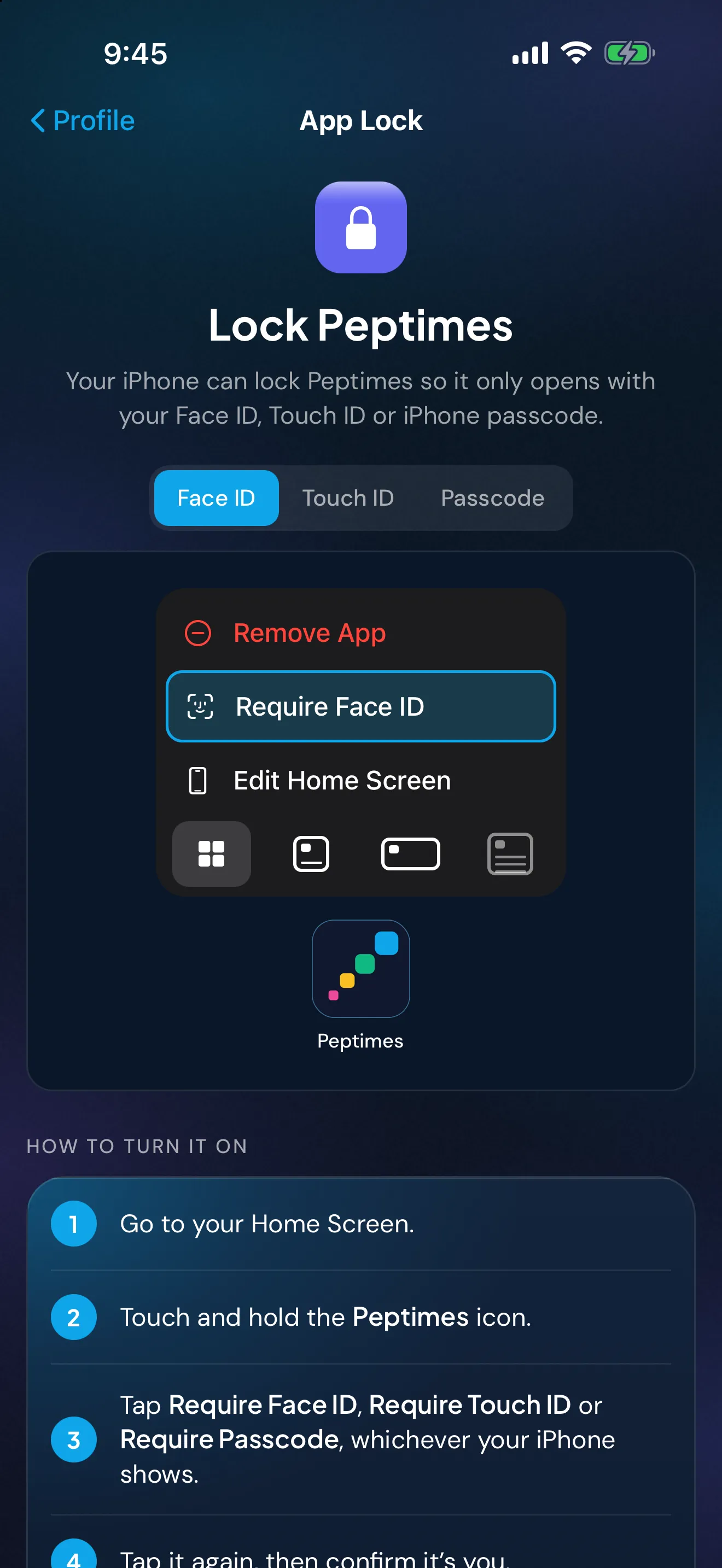
Apple's guide describes locking an individual app for iOS 18 and later. Touch and hold the app's icon until the Quick Actions menu opens, tap Require Face ID (or Touch ID or Passcode), and confirm. Apple says the app then needs Face ID, Touch ID or your passcode to open, and locks again each time you quit it.
Two limits: Apple says the lock applies only on that iPhone, and because a passcode is an accepted way to open a locked app, anyone who knows your passcode can open it too.
Check what your lock screen shows
A notification can put words on a locked screen. In Settings, tap Notifications, choose an app, then tap Show Previews and pick Always, When Unlocked or Never (not all apps support previews, Apple notes). If your phone sits on a desk or in a shared room, a reminder that names your medicine tells everyone who looks.
Know where exported files go
An export, a screenshot or a photo of a label is a separate copy, and it stays wherever you put it. Share your medication log with your doctor covers making and checking an export. This is where a copy can end up:
- Files, On My iPhone. Stored on that iPhone. Files lists it separately from iCloud Drive.
- iCloud Drive or another cloud folder. A copy stored online. Apple says iCloud Drive content is available on every device signed in to the same Apple Account, and at iCloud.com. CISA advises a strong, unique password and multifactor authentication on a cloud account, and warns that on a shared drive one compromised account can expose the data.
- Email. A copy in your sent items and in the recipient's mailbox, and often a downloaded copy on whichever device opens it. Ask the clinic how it prefers to receive records.
- AirDrop. Sends a copy straight to a nearby device. Apple says Everyone for 10 Minutes switches back to Contacts Only after ten minutes (to Receiving Off if you're not signed in to an Apple Account). Check the name before you tap.
- Group chats and social posts. Everyone in a chat has a copy. A screenshot posted in a group or forum shows everything in the picture, such as names, dates and notes.
- A shared or work computer. Other people may be able to open its downloads folder or see the file in the browser. Use your own account, and lock the screen when you step away.
- A web-based tool. Opening a file in a web-based spreadsheet or converter usually uploads a copy to that service.
Delete copies you no longer need
After an appointment, decide which copy you want to keep, in a place you chose, and delete the rest.
- On the iPhone. Apple says files you delete in the Files app go to Recently Deleted and are deleted permanently after 30 days. To remove one at once, delete it from Recently Deleted, which Apple says is immediate and can't be undone. Deleting a file from iCloud Drive removes it from every device signed in to the same Apple Account.
- In email. Delete the sent message and any attachment saved to your devices.
- On a computer. Delete the file from the downloads folder, then empty the Trash or Recycle Bin.
- Before you sell, give away or recycle a device. The FTC says to save what you want to keep, then erase the phone with its reset, or the computer with the operating system's erase tool.
Share only with people you choose
Before you send anything, decide who needs it, which part, and how it will reach them.
- Send the period and sections they need, not everything. The export guide shows how to copy a file and delete the sections you don't want to send.
- Choose a route that reaches one named person, such as your clinic's own system or AirDrop to a contact.
- Don't post a log or a screenshot of one publicly. A file you send is also theirs to forward, and you can't take it back.
Protect the accounts that hold your copies
Your email and cloud accounts are where exports often sit. CISA advises long, unique passwords (at least 16 characters, a different one for each account), a password manager, and multifactor authentication. Is your health app private? covers the questions to ask about any app that holds health records.
Peptimes and your records
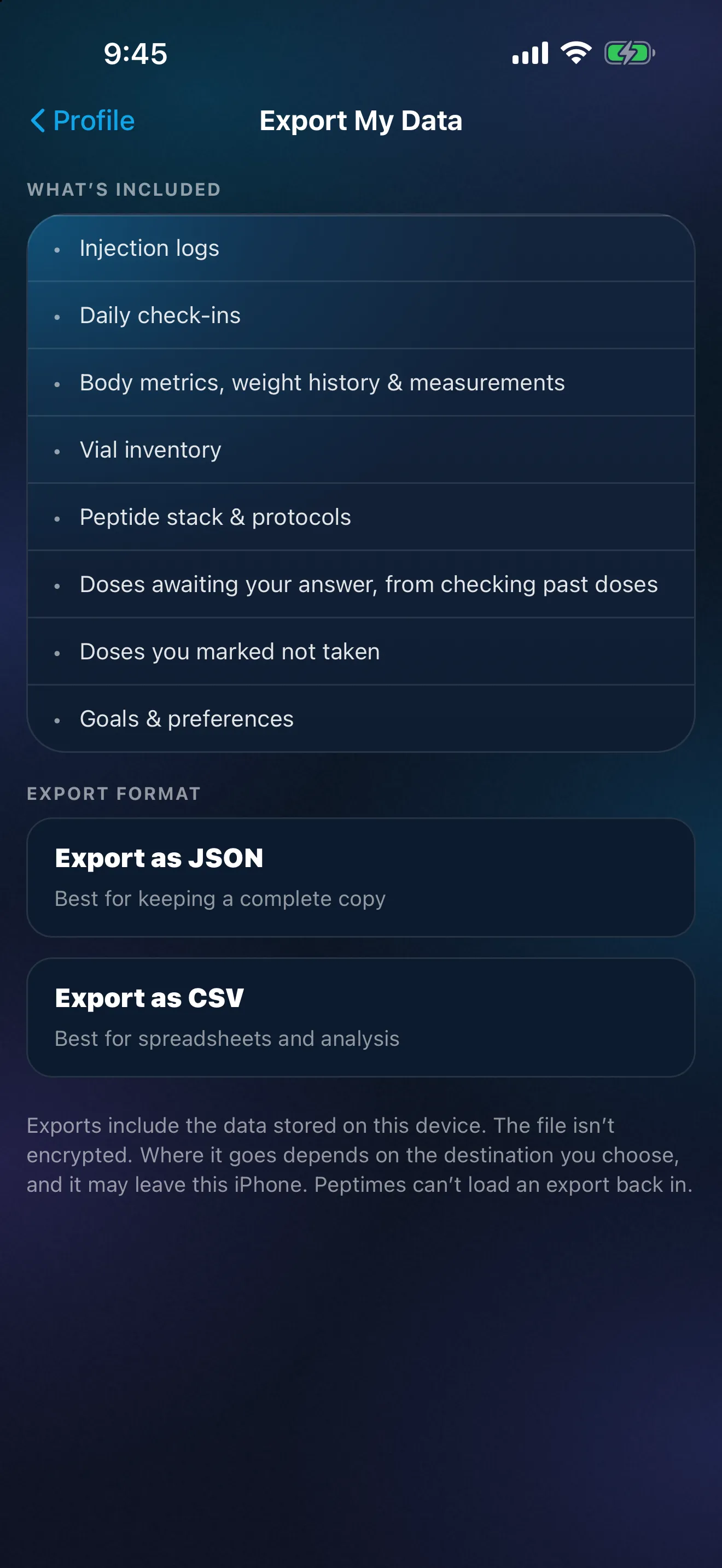
Peptimes is a private iPhone tracker. Your health records are stored on your iPhone. Your account (email and basic profile) is held by our sign-in provider. Peptimes doesn't keep a copy of your records on its servers, so export your data to keep one: an export is a CSV or JSON file, and from then on that file is yours to look after with the habits above. Export before you erase, sell or trade in the phone, and before you switch to a new iPhone, since your records may not come across.
You can lock Peptimes with Face ID using iOS's built-in app lock; the app shows you how. Peptimes doesn't have a lock or a passcode of its own.
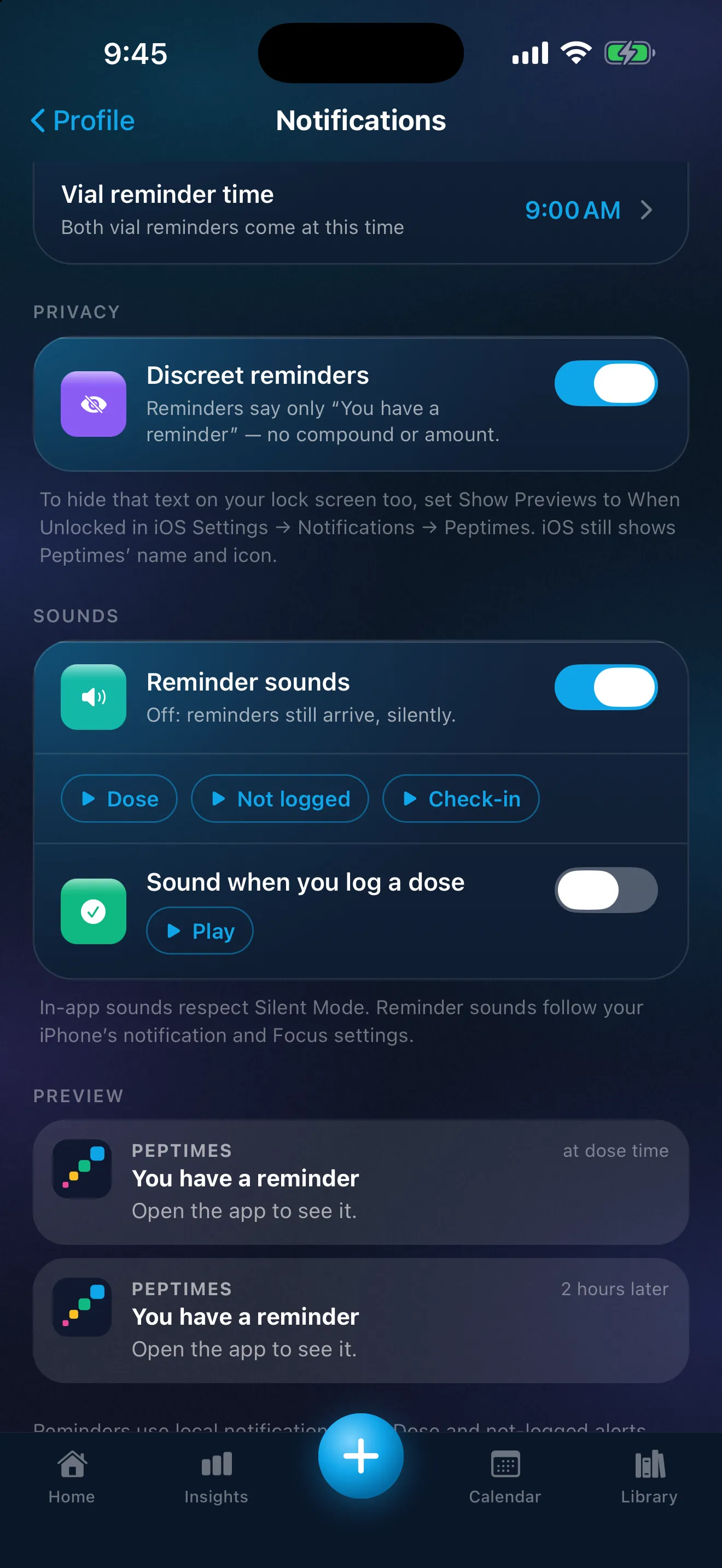
Without discreet mode, a Peptimes reminder shows the compound and the scheduled amount on your lock screen; with it on, reminders and follow-ups show only "You have a reminder" and "Open the app to see it." Like any iPhone notification, a discreet reminder still shows Peptimes' name and icon. When Unlocked hides its text on the lock screen too.
You can delete your account in the app. Your account and the records on this iPhone are deleted at the same time, so if you want a copy of your records, export first. The Peptimes app has no analytics and no ad trackers. How Peptimes handles your data explains the rest. Peptimes is coming soon to the App Store.
FAQ
Should I keep my exported file in iCloud Drive?
It's your choice. A file in iCloud Drive is a copy stored online and available on every device signed in to your Apple Account, so protect that account. If you'd rather the file stay on one device, save it to On My iPhone.
Sources
- Apple, iPhone User Guide, "Set a passcode on iPhone", checked 25 Oct 2026 (iOS 27 guide, copyright 2026): Settings path, Turn Passcode On, Passcode Options and the most secure formats, when the passcode is always required, Auto-Lock, Erase Data after ten failed attempts.
- Apple, iPhone User Guide, "Update iOS on iPhone", checked 25 Oct 2026: Software Update, Automatic Updates, Automatically Install.
- Apple, iPhone User Guide, "Lock or hide an app on iPhone" (iOS 18 version), checked 25 Oct 2026: Require Face ID (or Touch ID or Passcode), the app locks again after you quit it, a passcode also opens it, the lock applies only on that iPhone.
- Apple, iPhone User Guide, "Change notification settings on iPhone", checked 25 Oct 2026: Show Previews (Always, When Unlocked, Never), not all apps support previews.
- Apple Support, "Delete files or recover deleted files in the Files app on your iPhone or iPad", checked 25 Oct 2026 (published September 15, 2025): Recently Deleted for 30 days, deleting from Recently Deleted is immediate and not recoverable, deleting from iCloud Drive removes the file from every device on the same Apple Account.
- Apple, iPhone User Guide, "Set up iCloud Drive on iPhone", checked 25 Oct 2026: iCloud Drive content is available on devices signed in to the same Apple Account and at iCloud.com.
- Apple Support, "How to use AirDrop on your iPhone or iPad", checked 25 Oct 2026 (published October 05, 2026): Everyone for 10 Minutes reverts to Contacts Only, or to Receiving Off if you're not signed in to an Apple Account.
- Federal Trade Commission, "How To Protect Your Phone From Hackers", checked 25 Oct 2026 (July 2022): lock the phone, at least a 6-digit passcode, update the operating system and apps, turn on the feature that finds, locks or erases a lost phone.
- Federal Trade Commission, "Three ways to protect the personal info on your phone", checked 25 Oct 2026 (dated September 11, 2024): automatic locking, at least six digits, install updates, delete apps you don't use.
- Federal Trade Commission, "How To Remove Your Personal Information Before You Get Rid of Your Phone", checked 25 Oct 2026 (July 2022): erase the phone with a reset before you get rid of it.
- Federal Trade Commission, "How To Remove Your Personal Information Before You Get Rid of Your Computer", checked 25 Oct 2026 (July 2022): save what you want to keep, then erase the drive with the operating system's tool.
- Cybersecurity and Infrastructure Security Agency (CISA), "Use Strong Passwords", checked 25 Oct 2026 (page marked "Archived Content", no date): at least 16 characters, unique for each account, use a password manager, turn on multifactor authentication.
- CISA, "Get the Most out of Cloud Storage and Services while Minimizing the Risk", checked 25 Oct 2026 (no date shown): on a shared drive only one person's account has to be compromised; strong unique password and multifactor authentication; share only what people need.
- CISA, "Protect the Physical Security of Your Digital Devices", checked 25 Oct 2026 (no date shown): don't leave devices unattended; lock the screen.
- Peptimes, Help Center, "Delete your account", peptimes.featurebase.app/en/help, checked 23 Oct 2026: export first if you want a copy.
Coming soon to the App Store
See planned pricing