
Medication reminders that fit shift work, irregular days and travel
A reminder that arrives while you're asleep, in the air or in the middle of a shift doesn't do its job. If your hours change from week to week, or you travel, a reminder set once can stop matching your life. This guide covers setting up reminders around a schedule your prescriber has already set, so they reach you, and checking them when your routine changes.
The schedule is your prescriber's: the day, the time and the amount. A reminder is only a cue to look at it. This guide doesn't suggest changing, moving or shifting a schedule, and it doesn't say what to do about a dose that is late, missed or uncertain. Those questions belong to your prescriber, your pharmacist and the medicine's label. If your shifts or travel make a schedule hard to follow, tell your prescriber what your week really looks like. What changes, if anything, is their decision.
The basics of remembering a dose day (writing the schedule down once, linking it to something you already do, a second cue, a written log, telling someone at home) are in how to remember a weekly injection day. This page adds what's different when your hours aren't regular.
Plan around the hours you're awake
For each kind of day you have (day shift, night shift, days off, each stage of a rotation), mark the hours you're usually asleep, at work and free. Then mark where your schedule falls.
If a scheduled time keeps landing while you're asleep or in the middle of work, don't solve it with a reminder. Raise it with your prescriber, with the week you've just mapped. What you can choose is how a cue reaches you at the scheduled time.
Match the tool to how regular your week is:
- A steady pattern: a repeating alarm. In the Clock app, an alarm can repeat on the days you choose and carry a label you'll recognize. Apple says an alarm sounds even when Silent mode or a Focus is on, which matters if you sleep during the day.
- A rotating or irregular week: a calendar event for each date, each with an alert. In Calendar, open the event, tap Edit, tap Alert, and choose when you want to be reminded, such as "At time of event". Dated events follow the week you're actually working, without a repeating alarm going off on the wrong days.
Make sure the reminder can reach you
Shift work and travel are when iPhone settings most often hide a reminder. Check these:
- Notifications are allowed for the app. Go to Settings, tap Notifications, tap the app, and check Allow Notifications.
- Your Focus lets the app through. A Focus such as Sleep or Work can silence apps. Go to Settings, tap Focus, choose the Focus, tap Apps, and add the app under Allow Notifications From. If a Focus turns on by schedule, check that its hours match your real shifts, not a nine-to-five.
- Delivery is immediate. If you use Scheduled Summary, open the app's entry under Notifications and check that Notification Delivery says Immediate Delivery, so a reminder isn't held for a later summary.
- The lock screen shows only what you want. If your phone sits on a desk at work or in a shared room, choose how much a notification shows under Show Previews (Always, When Unlocked or Never).
Note the context when you record it
Log what you did straight after, with the real time, and add a few words that explain an odd hour: "after night shift", "landed", "on call". Months later, that note is what makes an unusual time make sense to you or your prescriber. If you can't tell whether you did it, record it as unknown rather than guessing, and ask your prescriber or pharmacist what to do next. Review your dose historyshows how to keep what you took, what you didn't and what you didn't record apart.
Before and during a trip
- Before you go, ask your prescriber about timing while you travel. This guide doesn't say when to take a dose in a new time zone; see flying with injectable medication, which covers asking about time zones, TSA rules and keeping records while away.
- List every reminder you rely on: alarms, calendar events and app reminders. Check which ones are still set for the days you'll be away.
- After you land, open each reminder and calendar event and read the time it now shows. Check it against what your prescriber told you. If you can't tell what a time means in the new place, ask your prescriber instead of guessing.
When your routine changes, check again
A new shift pattern, time off, a trip, a new phone or a software update are all reasons to look again:
- Does the schedule I wrote down still match what my prescriber told me?
- Does each reminder reach me at an hour I'm awake? Look at a typical week.
- Are notifications allowed, does my Focus let them through, and is delivery immediate?
- Do the times in my alarms, my calendar and my apps agree with each other?
- Is a reminder still set for something that has ended?
How Peptimes helps
You enter the schedule your prescriber gave you (times per day, days of the week and a start date), and Peptimes sends one reminder for each dose as a local notification on your iPhone. You can be reminded at the dose time or a set number of minutes before it. There's a follow-up if you haven't logged it, 2 hours after the dose time by default; you can change it or turn it off. A discreet mode keeps the compound's name and amount off your lock screen; Peptimes reminders explains each setting.
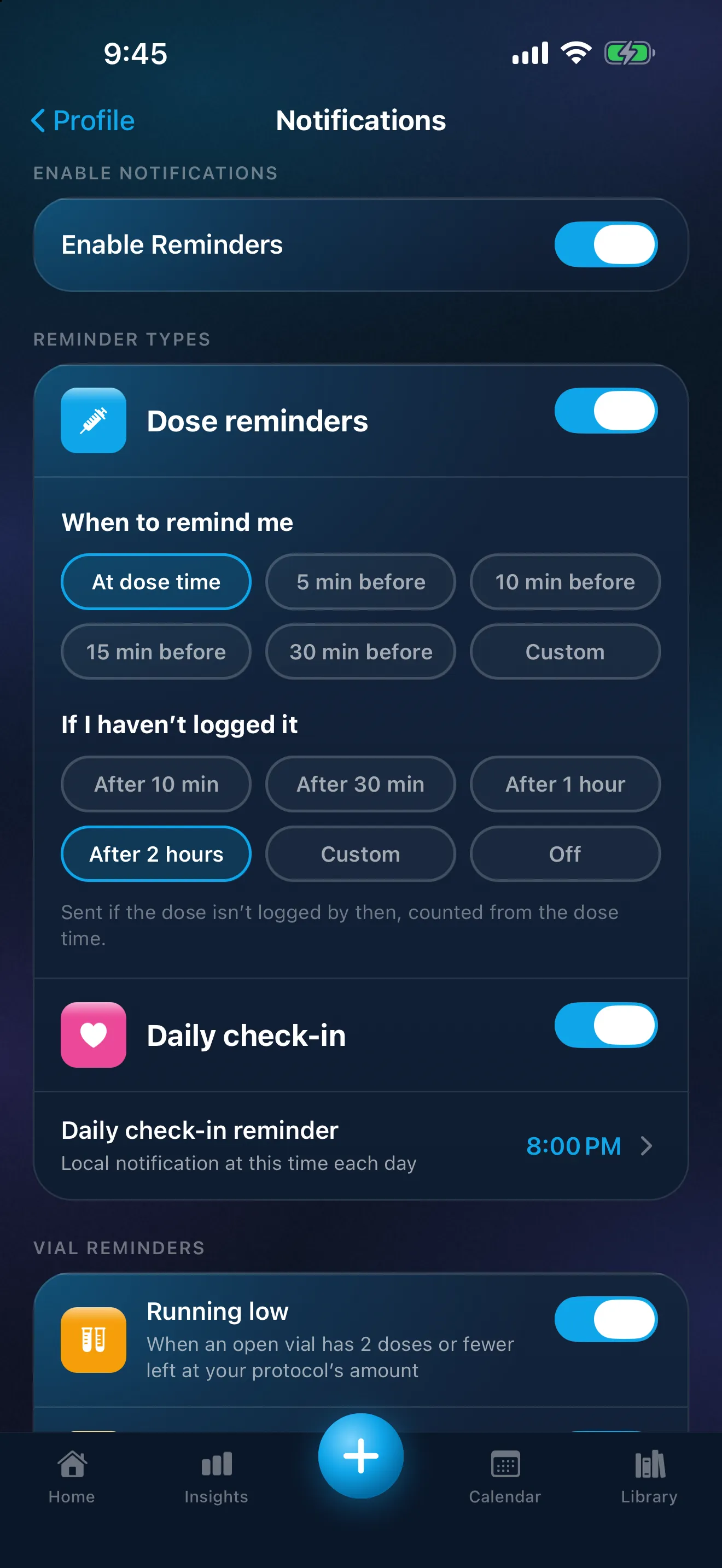
Times in Peptimes follow your iPhone's clock. Home lists today's doses, and you can open past days to record what happened. Like any app, Peptimes needs notifications allowed and a Focus that lets it through.
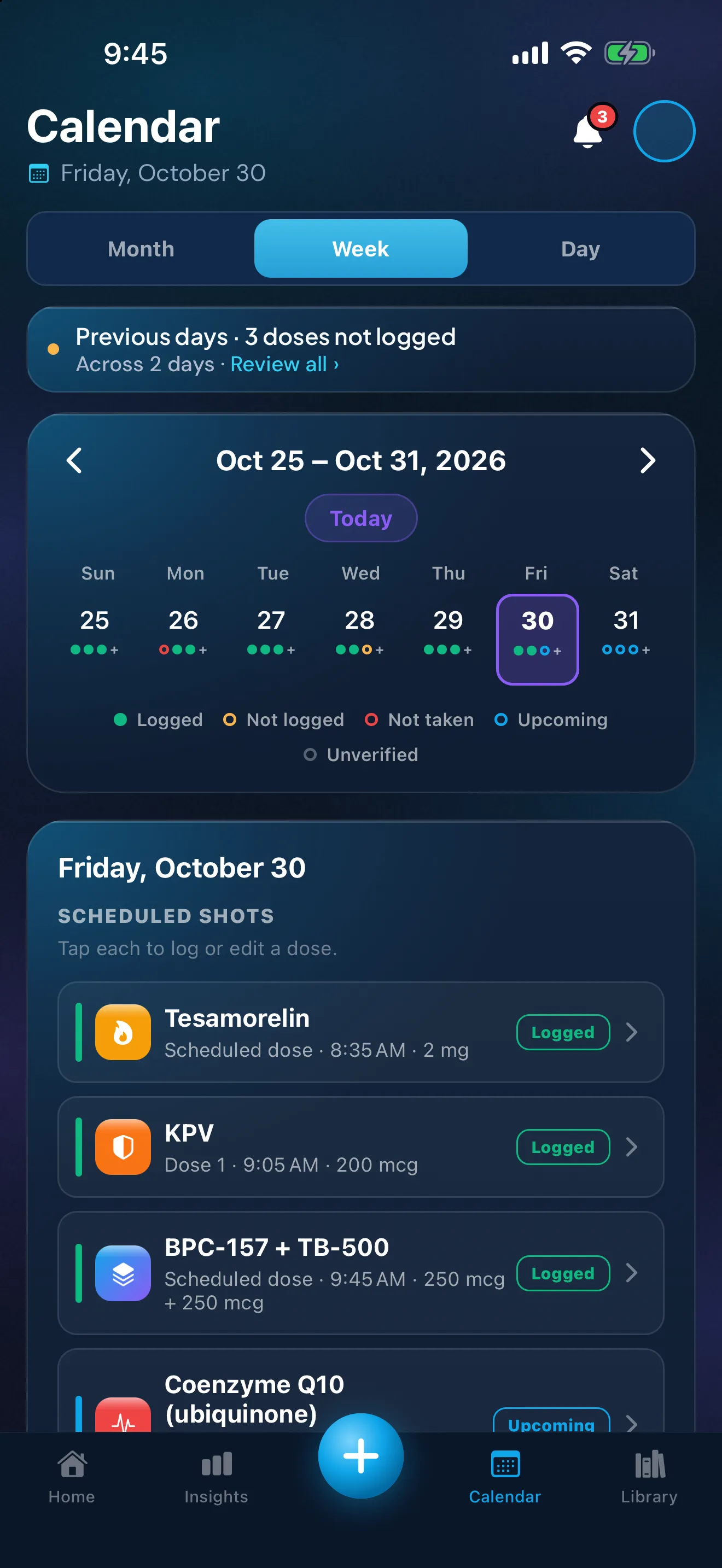
Sample data. The amounts are what a demo person entered, not advice.
Peptimes is coming soon to the App Store. Your health records are stored on your iPhone; how Peptimes handles your data has the details.
FAQ
My shifts don't line up with my schedule. Can Peptimes change it for me?
No. Peptimes records the schedule you enter and reminds you about the doses on it. It doesn't change a schedule for you. Tell your prescriber how your week looks, because any change to the schedule is theirs to make.
Sources
- Apple, iPhone User Guide, "Set an alarm in Clock on iPhone", checked 25 Oct 2026 (iOS 27 guide, copyright 2026): Repeat (days of the week), Label, and that an alarm sounds even in Silent mode or when Do Not Disturb or another Focus is on.
- Apple, iPhone User Guide, "Create and edit events in Calendar on iPhone", checked 25 Oct 2026: adding an alert to an event ("At time of event").
- Apple, iPhone User Guide, "Allow or silence notifications for a Focus on iPhone", checked 25 Oct 2026: choosing apps allowed to send notifications during a Focus (Settings, Focus, the Focus, Apps, Allow Notifications From).
- Apple, iPhone User Guide, "Change notification settings on iPhone", checked 25 Oct 2026: Allow Notifications per app, Notification Delivery (Immediate Delivery or Scheduled Summary), Show Previews (Always, When Unlocked, Never), and that a Focus can delay the delivery of notifications.
- Peptimes, Help Center, "How reminders work", "Reminders not arriving? Try these steps" and "Set a schedule: how often, what time and for how long", peptimes.featurebase.app/en/help, checked 23 Oct 2026: notification permission and Focus, entering the schedule you already follow.
Coming soon to the App Store
See planned pricing