
Review your dose history and record what happened
A dose history is only useful if it matches what happened: the doses you took, the ones you took but never wrote down, and the ones you didn't take. The last two are easy to blur together. This guide covers how to read your dose history, how to fill in a dose you forgot to log, and how to record a dose you didn't take. It's about record-keeping and works with any log. The steps for Peptimes follow.
Keep three states apart
Every scheduled dose in a log is in one of three states:
- Taken. You took it, and the entry has a date and time, an amount with its unit, the route, and for an injection the site.
- Didn't take. You know you didn't, and you've said so.
- No record. You haven't written anything down yet, or you can't say what happened.
A blank is not the same as "didn't take". If both look like an empty row, nobody reading the log, including you, can tell them apart. Peptimes keeps them separate. "Not logged" means there's no record yet. "Not taken" means you told Peptimes you didn't take it.
Review your history in Peptimes
Dose History
Open Dose History from Home or from Insights. It lists every dose you've recorded, newest first.
- Search by name at the top.
- Tap a compound's chip to see only that compound's doses.
- Tap a dose to see it, edit it or delete it.
With a compound chip selected, a summary line appears under the title, in this form: "N doses of your compound · last Oct 22 · every N hours on average". It tells you how many doses you've recorded, when the last one was, and, when the times are known, the average time between them, in hours or days. The line counts the doses you recorded. A dose you marked as not taken doesn't appear in Dose History, though you'll still see it as "Not taken" on the Calendar.
That line describes your own past entries. It's worked out from what you recorded, not a target and not a check against anything. An average can also hide uneven gaps, so look at the list itself as well.
Calendar
The Calendar shows scheduled and logged doses in month, week and day views. Tap a day to see its doses. Each dose in a day's list has a text label as well as a color, such as Logged, Due now, Not logged or Not taken.
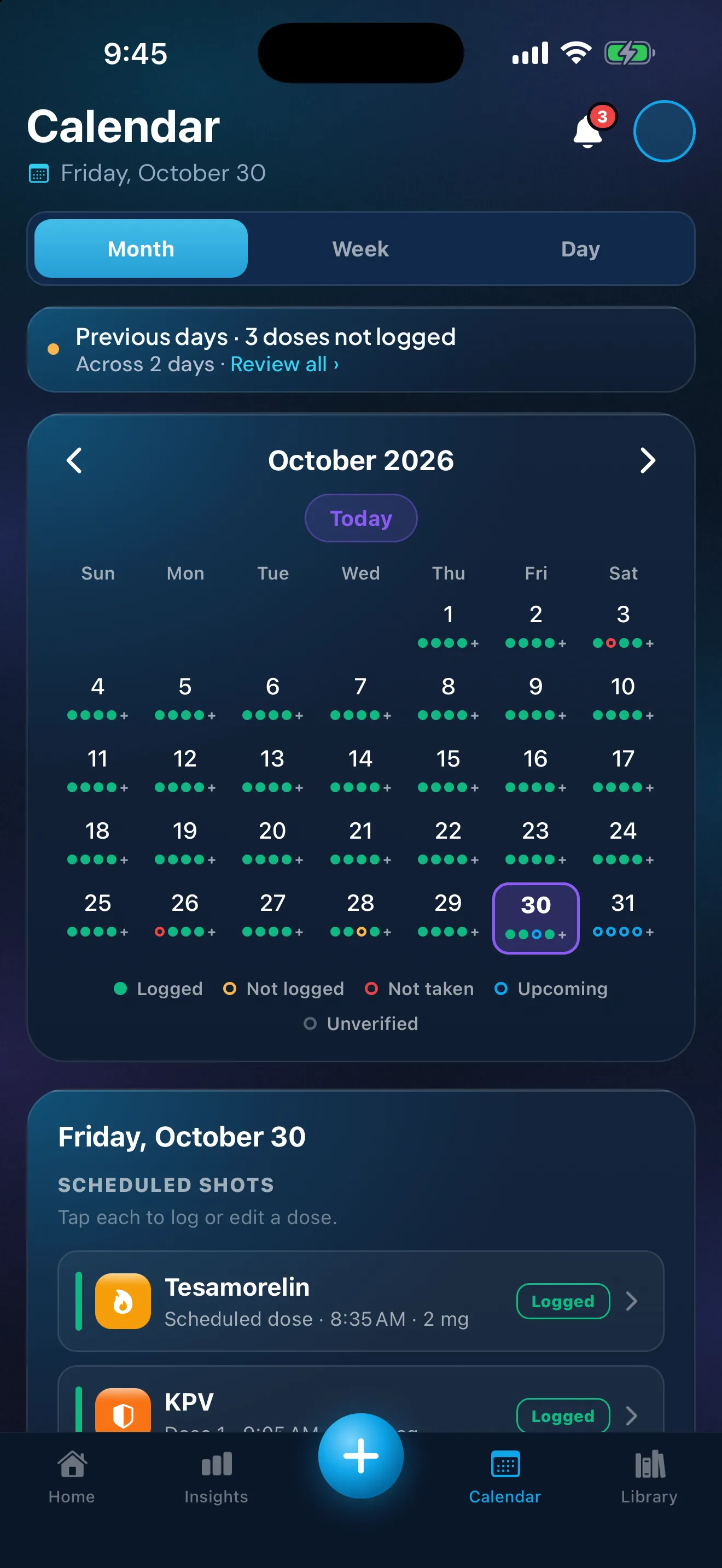
Sample data. The amounts are what a demo person entered, not advice.
Home, for past days
Tap an earlier day in the week strip at the top of Home to review it and record or answer its doses. Previous days lists the past week's doses you haven't logged.
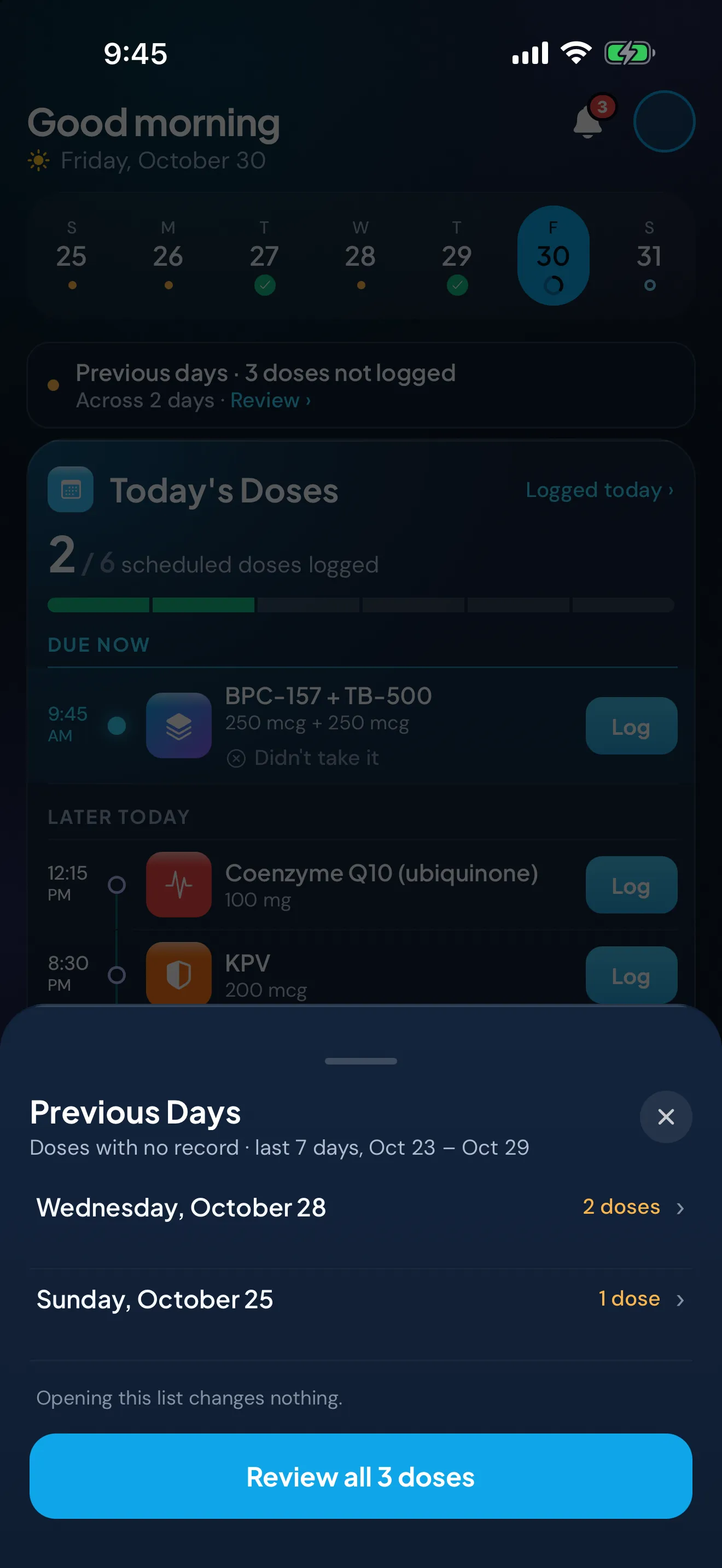
Sample data. The amounts are what a demo person entered, not advice.
Record a dose you took but didn't log
Open the day from Home's past days or from the Calendar, tap the dose and record it with the details you know. The Calendar goes back to any earlier day, and its scheduled doses start from your start date or your last schedule change. With several to fill in, you can answer each in turn or leave one for later. The help article Didn't take a dose, or forgot to log one has the exact steps.
Started before you found Peptimes? Set your start date up to 6 months back and confirm the doses you've already taken, all at once if you like. Those past doses are saved without an injection site.
A few habits keep the record honest:
- Fill gaps soon. The sooner you do it, the more of it you'll remember.
- Don't guess. If you can't say what happened, leave the dose as "Not logged". A gap you can see is more honest than an entry you made up.
- Leave out what you don't know. Record the details you're sure of. When you record a past injection, the site is optional ("Leave it empty if you don't remember"), and an empty one shows as "Site not recorded". A time copied from the schedule records the schedule, so use the real time if you know it.
- Be careful with quick answers. Log all records a whole day's doses at once, and it saves them without an exact time or injection site. Use it only when it's true for every dose.
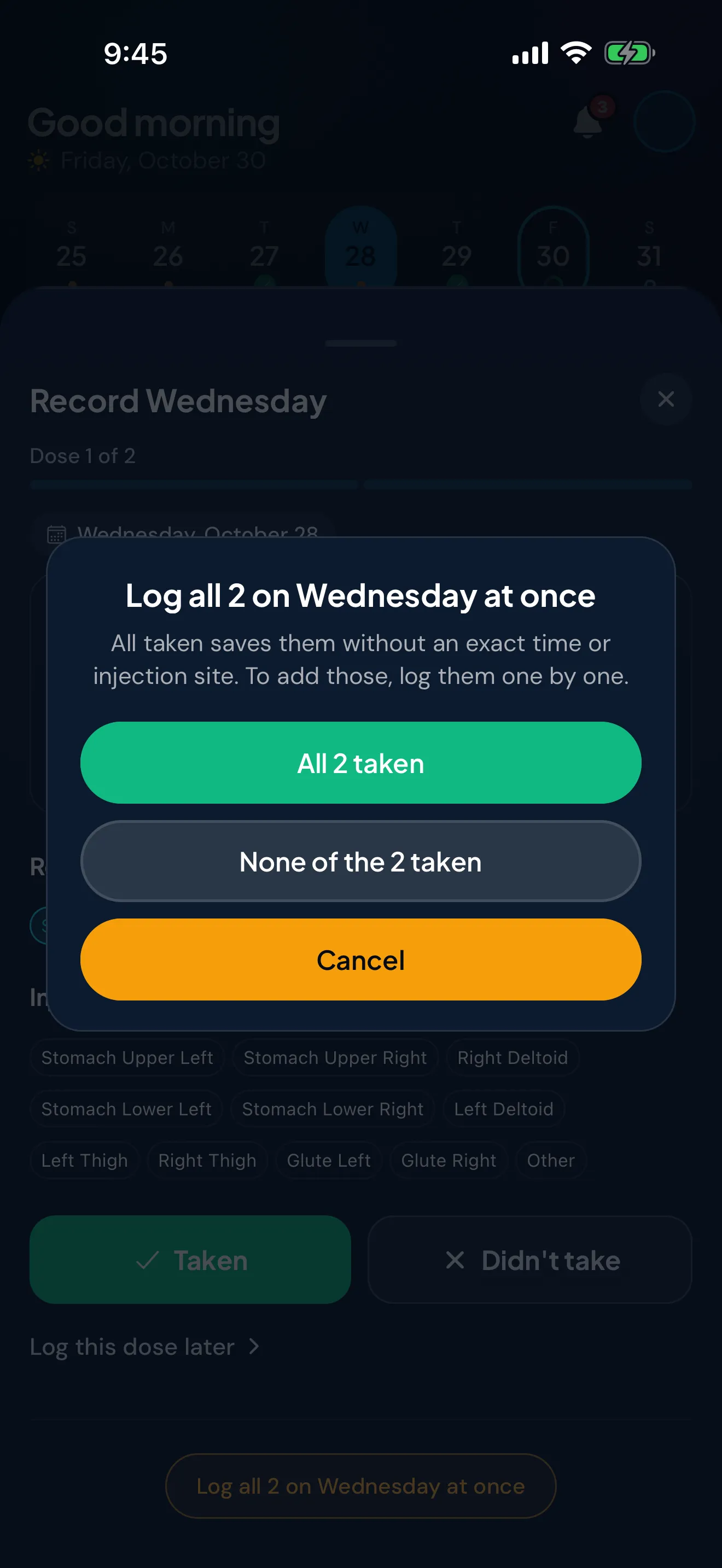
Record a dose you didn't take
Once a dose is due, you can mark it as one you didn't take, on Home or in the Calendar, or when you record an earlier day. It then shows as "Not taken", and you can change or remove the answer if you got it wrong.
Recording a dose you didn't take tells anyone reading the log that you knew about the gap. A blank could mean anything. In Insights, Your Routine counts the two separately, as "Not recorded" and "Didn't take".
What to do about a missed dose is a question for your prescriber or your medicine's label. Peptimes records what happened and can't advise on it.
Fix a mistake
Tap a dose to open its summary, where you can edit or delete it. A logged dose can also be deleted, and a "Not taken" answer can be changed or removed. To change a logged dose to "Not taken", remove the log first. The help article Edit or delete a logged dose covers each step.
Habits that keep a history accurate
- Record each dose soon after, while you remember it.
- Write the unit with every amount. The same number in a different unit is a different amount.
- Add a short note when an entry needs context.
- Once a week, scan the last seven days for gaps and fill them.
- Keep a copy outside the app now and then: Peptimes doesn't keep a copy on its servers, so export your records, and store the copy safely.
How Peptimes helps
Peptimes, coming soon to the App Store, sends one reminder for each scheduled dose, plus a follow-up if you haven't logged it (2 hours after the dose time by default; you can change it or turn it off), so fewer doses go unrecorded to begin with. Dose History, the Calendar and Home's past days are where you read and fill in the rest. Your health records are stored on your iPhone, and you can export them as CSV or JSON when you need a copy.
For an appointment, see what to bring and how to keep a side effect log. How Peptimes handles your data explains where your records are stored, and support links to the help center.
Sources
- Peptimes, Help Center, "Didn't take a dose, or forgot to log one", checked 25 Oct 2026: recording, "Not logged" versus "Not taken", and the missed-dose sentence.
- Peptimes, Help Center, "Past days, future days and Dose History", checked 25 Oct 2026: Dose History, search, chips, the summary line, past days.
- Peptimes, Help Center, "The Calendar: views, dots and statuses", checked 25 Oct 2026: views and status labels.
- Peptimes, Help Center, "Edit or delete a logged dose", checked 25 Oct 2026: editing and deleting.
Coming soon to the App Store
See planned pricing